Writing Sites Meta

Showing posts with label Platform Problems. Show all posts

Google Blogger vs Tumblr Blog: Search Feature

Wednesday, April 3, 2019
What’s so useful and important about search boxes? Why should sites or blogs have a search feature? It’s important for sites and blogs to have a search function for the sake of their potential users and visitors.

Blogging Platforms, comparison and contrast series, Google Blogger, Informational Articles, Microblogging Platform, Platform Problems, Reviews, Social Networking Site, Tumblr,

People who come across your site and are searching for something specific should be able to easily find what they’re looking for by using the blog’s search box. They shouldn’t have to go through the entirety of your archives or articles list, if they don’t want to, just to find what they’re looking for.

You have to make things easy and convenient for your potential visitors and users because, otherwise, why would they bother to stay on your website or blog? With that said, you would expect platforms like Google Blogger and Tumblr to have a search feature, right? Let’s take a look at their search functions:

Google Blogger Search Feature

Google Blogger (blogging platform) has a built-in search feature, which you can easily add to your blog with no trouble or problem at all.

All you need to do is go to the design or layout part of your blog and choose to add a widget. Google Blogger offers the search feature as a gadget, which you can add in your site’s sidebar or footer. You can easily configure your search box by clicking on the edit widget link. You can name it and set it to search your blog, etc.

Tumblr Search = Laughable?

On the other hand, Tumblr’s search function, if you can call it that, pales in comparison to Google Blogger’s search feature. Seriously, it’s like they’re not fit to be mentioned in the same sentence. Why? What’s the problem with Tumblr’s search feature?

You Can Only Search for Tags on Tumblr

The biggest problem is how Tumblr only lets you search for tags. Who searches for tags? People don’t usually search for tags. Mostly, they search for keywords. Sure, some will search for tags, but they’ll also want to search for keywords alongside the tags.

Besides, it’s not like you can tag anything and everything on your Tumblr blog, so how can your visitors find what they’re looking for if they’re limited to searching by tags? Why does Tumblr set such an annoying limitation? How can this be useful at all?


If you want a decent and useful search feature, you obviously can’t make use of the built-in Tumblr search function, so you have to go through the trouble of looking around for possible alternatives and figuring out how to install or add it to your Tumblr blog. Needless to say, this is such an annoying and time-wasting hassle.

Update: Tumblr now lets you search using keywords, if you want to. However, from what I've experienced so far, it's just not as good as Google's search. Whenever I search for something on my Blogger blog, I always find what I'm looking for, even when I only type a single keyword.

Unfortunately, this is just not the case when it comes to Tumblr's search. Whenever I try to look for a post that I know is on my blog, I always have trouble finding it. I always have to try inputting several different combinations of keywords or look through pages of search results.

Sometimes, even then, I still won't end up finding what I'm looking for unless I go through each and every single page of my blog, which isn't feasible when I already have so many posts published.

Conclusion

Google Blogger definitely wins this round for having a superior search feature. Tumblr’s search function definitely needs a lot of improvement.

Your Thoughts and Opinions

What do you think? Feel free and welcome to share your thoughts and opinions by leaving a comment below.

*Notes:
- Image with added text was modified by Freya Yuki (CC:BY-SA) based on the image by Kazenokaze (CC:BY-SA) from deviantArt
- Image is meant to symbolize someone using the search box on their Google Blogger blog and trying to find a decent search feature for their Tumblr blog
- YouTube video shows you how to add the search box gadget to your Google Blogger blog
- This was previously published elsewhere

Google Blogger vs Tumblr Blog: Adding Text on Footer and Sidebar

Friday, March 29, 2019
What kind of information or text content can you put on your blog's or site’s footer and/or sidebar? Is it really necessary to have text on your footer or sidebar?

Do platforms like Google Blogger and Tumblr make it easy for you to add any text you want on your website’s footer or sidebar? How can you add text to your Google Blogger or Tumblr blog?

Blogging Platforms, comparison and contrast series, Google Blogger, Informational Articles, Microblogging Platform, Reviews, Social Networking Site, Tumblr, Platform Problems,

What Kind of Content Should You Put on Your Blog's Sidebar and Footer?

You can put all sorts of information or content on your blog or site’s footer or sidebar. This depends on what you want those places to have.

For instance, you could have a copyright notice, a disclosure notice, a short list of your most popular posts, a list of your tags or labels, and more. You can even have a short introductory message there or even a mini bio about the blog author or some short tidbit about your site.

Take a look at the following screenshots from some of my blogs for examples:

anime meta archives google blogger blog, sidebar, popular posts gadget widget feature, blogging platform

The sidebar of the the Anime Meta Archives blog makes use of Google Blogger's Popular Posts Gadget. The blog's top 10 posts are displayed with large thumbnails. The post title shows up as an overlay on top of the image. If you hover your mouse over the title, a tooltip with a short excerpt from the post will show up.

tumblr, blog, social networking site, microblogging platform, blogging, footer

My main Tumblr blog has a 2-column footer. Both have text content with links to the Disclosure, Disclaimer, Terms of Use, and Privacy Policy pages. The footer also includes a copyright and credits section.

Google Blogger Text Gadget

If you’re using Google Blogger (blogging platform), you can easily add any text to your site’s footer or sidebar. All you need to do is go to the layout part of your Blogger blog, then click on the “add a gadget” link.

From the list of widgets that will appear, just choose the Text gadget and click on the link to add it to your site (you can choose to add this to either your footer or sidebar or both).


Google Blogger’s Text gadget allows you to type any text message or content that you want to show on your blog or site. You can easily edit or delete this whenever you want.

Adding Content to Your Tumblr Blog's Sidebar and/or Footer

Tumblr (microblogging platform and social networking site), on the other hand, doesn’t make things easy for its users at all. First of all, it doesn’t even have any built-in gadgets or widgets, so if you’re looking for a Text gadget, don’t bother because you’ll just end up wasting your time.

I know, it’s horrible, isn’t it? Things would be so much better and easier if Tumblr was nice enough to offer its users a Text widget. Don’t you wonder why Tumblr isn’t user-friendly enough?

If you want text on your Tumblr blog’s footer or sidebar, you’ll have to take the time to search around for possible ways to get this done. So trying to insert text on your Tumblr blog footer or sidebar isn’t easy at all.

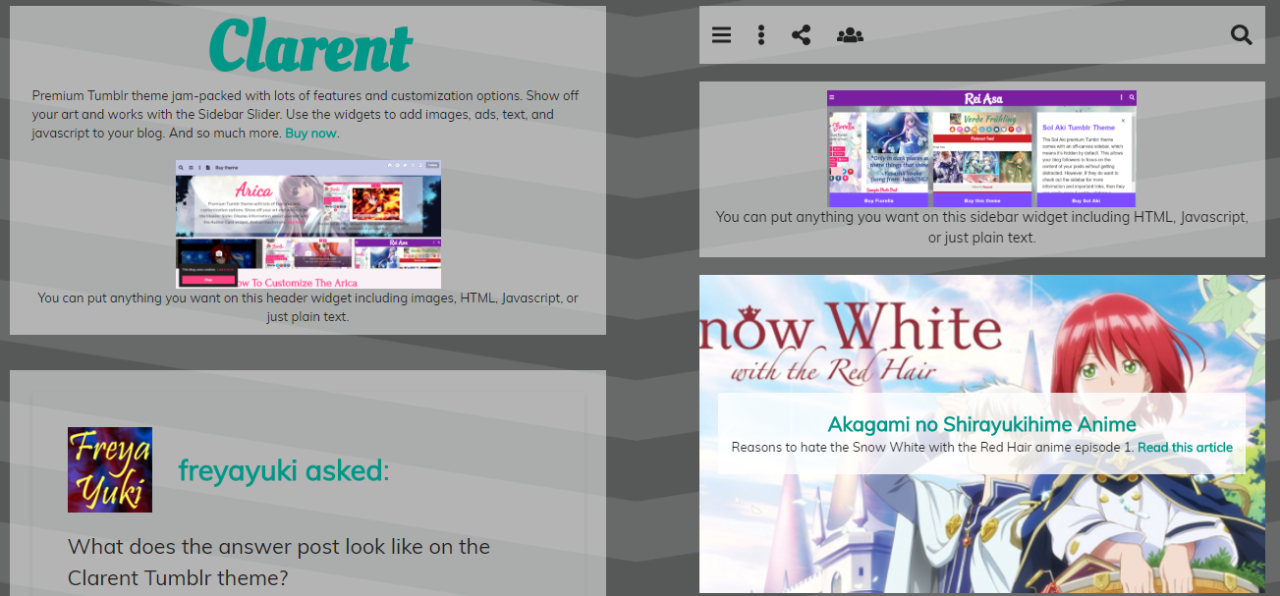
However, there are Tumblr themes that allow you to easily add content to the footer or sidebar of your blog without having to code anything. All you need to do after installing the theme is to go to the theme options page of your blog. Then just copy and paste whatever you want to add in the appropriate textbox. Have a look at the following screenshots for examples:

clarent premium tumblr theme, responsive, mobile-friendly, customizable, carousel, widget, sidebar, gumroad

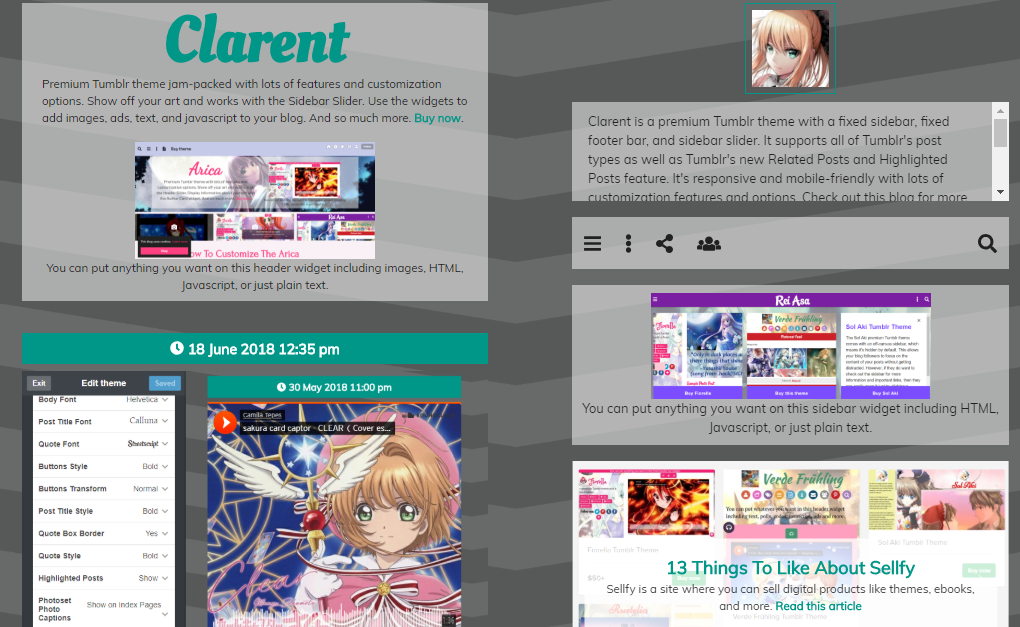
You can put anything you want on the Clarent Tumblr Theme's sidebar widget, including HTML, Javascript, or just plain text.

clarent premium tumblr theme, responsive, mobile-friendly, customizable, carousel, widget, sidebar, gumroad, html, javascript

Clarent even comes with a carousel widget, which you can use to showcase your arts and works. Check out the demo blog here. Learn more about this theme here. Check out my Themes List for more responsive, mobile-friendly, and easily customizable Tumblr themes for your blog.

Conclusion

With Google Blogger, all you need to do is select the Text gadget, input your text, and that’s it. You don’t have to worry about HTML or codes or CSS. It’s no wonder that Google Blogger wins this round.

Looks like Tumblr needs a whole lot of improvement, right? Well, that is, unless you choose a Tumblr theme that comes with text widgets for the sidebar or footer of your blog.

What do you think about this? Feel free and welcome to share your thoughts and opinions by leaving a comment below.

*Notes:
- Image with added text was modified by Freya Yuki (CC:BY-SA) based on the image by hayashinomura (CC:BY-SA) from deviantArt
- Image is meant to symbolize someone trying to add text on their Google Blogger or Tumblr blog’s sidebar or footer
- YouTube video shows you how to add a Text gadget or widget to your Google Blogger blog’s sidebar or footer; it’s really easy
- This was previously published elsewhere

Google Blogger vs Tumblr Blog: Widgets and Gadgets Feature

Sunday, March 24, 2019
What are widgets? Why are they important? Why should Google Blogger and Tumblr offer their users gadgets to use on their blog or site? How does Tumblr fail to surpass Google Blogger when it comes to the use and availability of gadgets and widgets?

google blogger, blogging platform, social networking site, microblogging platform, tumblr, widgets, gadgets feature, versus, reviews, comparison and contrast, informational articles

Widgets and gadgets are useful features or tools that you can add to your blog. For example, you can have a labels gadget, which can show all the tags that you use on your site. You can even have an archives widget, which can show a list of all the posts or articles on your website.

Let’s take a look at the gadgets and widgets offered by Google Blogger and Tumblr and see which of the 2 is better:

Google Blogger has Numerous Gadgets and Widgets

Google Blogger (blogging platform) offers you a lot of gadgets that you can use for your Blogger site or blog. These widgets can all be useful and helpful to you.

For instance, Blogger has a Contact Us form, so your potential visitors can easily contact you or message you if they want to. You can even have a Follow By Email feature so people can easily subscribe to your site or blog.

Blogger also has a Search Box, Popular Posts, Poll feature, and a whole lot more awesome widgets. You can also easily add a text message to your blog’s footer or sidebar with the Text gadget. If you want to add codes, you can do so by using the HTML/JavaScript feature.


The best part is how easy and simple it is to add whatever widget you want. All you need to do is go to the layout part of your Google Blogger blog then click on the “add a gadget” link. You’ll then be shown a list of all the possible widgets that you can choose to add to your site.

To add your selected gadget, all you need to do is click on the gadget name or the plus image next to it. It will automatically be added to your site, and you can then change its settings or configure it to your liking.

Tumblr has Zero Gadgets or Widgets

On the other hand, Tumblr (microblogging platform and social networking site) is not user-friendly at all, not when it comes to gadgets or widgets.

That's right. Unfortunately, Tumblr doesn’t have any gadgets or widgets. So if you want features like adding text on your sidebar or footer, then you’ll have to go to your blog theme’s HTML and figure out how and where to insert the text you want.

google blogger, blogging platform, social networking site, microblogging platform, tumblr, widgets, gadgets feature, versus, reviews, comparison and contrast, informational articles

The same can be said for other features like the Follow By Email, Popular Posts, Contact Form, Polls, and more. If you want these things on your Tumblr blog, then you’re going to have to go through the trouble of researching and trying to find out how to add said feature to your site and it’s definitely not going to be easy.

Why does Tumblr have to make things so difficult for its users? If it offered gadgets and widgets like Google Blogger, things would be so much easier for people trying to fix and customize and modify their Tumblr blog theme.

With that said, Google Blogger definitely wins this round for having so many helpful and useful gadgets and widgets that you can easily add to your blog or website with a simple click.

*Notes:
- Image with added text was modified by Freya Yuki (CC:BY-SA) based on the image by Kazenokaze (CC:BY-SA) from deviantArt
- Image is meant to symbolize someone using the widgets offered by Google Blogger blog and trying to find working gadgets for their Tumblr blog
- Second pic is by Romain Toornier (CC:BY) from flickr
- YouTube video shows you how you can add Google Blogger gadgets to your blog; as you can see, you have what appears to be thousands of widgets to choose from
- This was previously published elsewhere

Is WordPress.com Restrictive?

Sunday, February 17, 2019
Do you think that the WordPress.com blogging platform is restrictive? Does it have way too many limitations, or do you actually get lots of freedom and choices if you use this platform for your blog?

wordpress, blogging platform, wordpress.com, blog

Some Facts About WordPress.Com

  • You are not allowed to edit the CSS of your blog theme… unless you pay
  • You are not allowed to use Google Analytics on your blog… unless you pay
  • You are not allowed to use any other polling service… except PollDaddy
  • You get a Gravatar account with your WordPress blog… whether you like it or not
  • You don’t get customer support from WordPress… unless you pay
  • You can’t turn off the infinite scroll feature for real… unless you pay
  • You can’t add a copyright link to your blog… unless you pay

wordpress.com, wordpress, blogging platform, blog

Some Things That You Can’t Get or Do on WordPress.Com Even if You Pay:

  • You are not allowed to edit the HTML of your blog theme
  • You are not allowed to upload your own theme to WordPress
  • You are not allowed to add ads to your blog (unless you get WordAds, but you only get a shot at this if your blog gets lots of traffic)
Update: if you're on the WordPress.com Premium or Business plan, you get access to WordAds. If you're on a Free or Personal plan, your blog needs to have high traffic in order to get the option to apply to the WordAds program
  • You are not allowed to remove the attribution credit links on your blog (the ones that say “powered by WordPress” and “theme made by [theme maker’s name here]”)
  • You are not allowed to add or use Google Fonts on your blog
  • You are limited in what you can do in terms of customizing your blog even with the Custom Design Upgrade, which only lets you edit the CSS of your theme (for example, you can’t import files)

Your Thoughts and Opinions

So, is the WordPress.com blogging platform restrictive? You tell me. What do you think? What are your thoughts and opinions about this? Feel free and welcome to share your thoughts and opinions by leaving a comment below.

*Notes:
- First image is by 27707 (Public Domain) from Pixabay
- Second image is by pixelcreatures (Public Domain) from Pixabay
- This was previously published elsewhere on Tuesday, November 8, 2016 at 11:33 AM
- Info presented above was true when it was written, but everything is subject to change without notice like if WordPress decides to change their rules, etc.

Sources:

Problems With Adding Polls to Your WordPress.Com Blog

Tuesday, February 12, 2019
What’s wrong with adding polls to your WordPress blog? Are you allowed to add polls to your blog? What’s there to like and dislike about this?

polldaddy, automattic, polling service, blogging platform, wordpress, wordpress.com, blog, articles, posts

Can You Add Polls to Your WordPress.Com Blog?

Yes, you can. What’s the catch? The catch is that you can only add polls using PollDaddy. This is a polling service owned by Automattic, the same company who owns WordPress.

What’s Wrong With PollDaddy?

Dunno. Nothing, maybe. Those who use this polling service will be able to tell what its strengths and weaknesses are. This isn’t the issue though.

What Is the Problem With Adding Polls to Your WordPress.Com Blog?

The problem is how you’re stuck with PollDaddy. If you want to add polls to your blog, you have to use PollDaddy. You’re forced to use PollDaddy. You don’t have a choice.

wordpress, blogging platform, wordpress.com, polling service, polldaddy, blog, articles, posts

Want polls on WordPress.com? Use PollDaddy or have no polls at all. But what if you don’t want to use this particular polling service?

After all, this isn’t the only polling service out there. There are many more sites that allow you to add polls to your blogs or websites like Opinion Stage.

What if You Already Have an Account on Another Polling Service?

Some polling services make it possible for you to use their polls on various platforms, so you don’t have to sign up to so many different services.

For example, you can use Opinion Stage on Tumblr, Google Blogger, WordPress.org, and more.

So, if you already have an account on another polling service, wouldn’t you want to use that on all of your sites and blogs so you don’t have to create yet another account for the same service?

On WordPress though, you’re forced to use PollDaddy whether you like it or not or just go without polls because they don’t care if you have another account elsewhere or not.

Your Thoughts and Opinions

What do you think about this? Do you use PollDaddy? Do you like it? Do you use Opinion Stage? Do you like it?

Do you think WordPress should give people a choice in terms of what polling service they can use on their WordPress.com blogs?

Feel free and welcome to share your thoughts and opinions by leaving a comment below.

*Notes:
- First image is by Alan Klim (CC:BY) from flickr
- Second image is by pixelcreatures (Public Domain) from Pixabay
- This was previously published elsewhere on Wednesday, November 2, 2016 at 11:32 AM

5 Things to Dislike About the Latest WordPress Update Version 4.1

Thursday, February 7, 2019
What’s not to like about the latest WordPress update version 4.1? Is something wrong with it?

wordpress, blogging platform, latest update, version 4.1

Things to Like About the WordPress Update

One thing I like about the WordPress update is how it never drastically changes the appearance of the dashboard, so the Daily Two Cents* and Writegde* dashboards still look pretty much like how I remember them before the version 4.1 update.

I like that because I’m used to what the dashboard looks like. I’ve learned to like its appearance so it would just feel and seem wrong if it suddenly changes without warning.

*Writing sites that used to pay per view, but have since changed their payment model, unfortunately, where you can earn some passive or residual income by posting articles

Gigantic Text

Now, one of the things I don’t like about the latest WordPress update is how the text on the text post editor is way too big.

Before the update, the text was kind of small (fortunately, it’s still readable), and I definitely would have wanted it to be bigger, but not this big.

This time, the font size is just too much. It’s so huge that it borders on ridiculous.

Text Post Editor and Preview

What you see is definitely not what you get thanks to the version 4.1 WordPress update.

Whenever I preview the articles I write on the Writege and Daily Two Cents text post editor, it always looks different from how it’s presented in the editor.

On the text post editor, you can see the gigantic font size, but, when you preview your post, it goes back to a smaller font.

As such, just because it looks like you have such a huge paragraph on the editor, it doesn’t mean that that’s the case when you preview your article.

Adding Images

Thanks to the discrepancy between the text post editor and the preview, it’s very difficult to fix the images that you add to your article.

On the editor, the picture might look huge and it might look like it’s aligned with only a few paragraphs, but, when you look at the preview, you’ll see that it looks very different.

wordpress, blogging platform, writedge, daily two cents, writing sites, version update, image problems

So you will need to use trial and error when you move things around so you can find the perfect placement and positions for your photos.

Word Count

On Writedge and Daily Two Cents, there is a live word count that is located at the end of the text post editor textbox.

Before the WordPress update to version 4.1, this live word count used to stay in a fixed position so that, even if you scroll up on the editor to get to the top of the page, you can still see your word count.


This is very useful because you can see right away if you still need to add more words or if you’re already past the minimum word count.

After the update, the live word count is no longer in a fixed position so you can only see it when you scroll down to the end of the text post editor.

What are your thoughts on the WordPress version 4.1 update? Do you like it or not?

*Notes:
- First image is by 27707 (Public Domain) from Pixabay
- Second image is by StockSnap (Public Domain) from Pixabay
- This was previously published elsewhere on Thursday, October 27, 2016 at 11:31 AM
- YouTube video features the Writedge and Daily Two Cents WordPress dashboard